Beginner-Friendly Workflows for S2V: How to Use the Sora 2 Video Generator to Create Engaging Videos
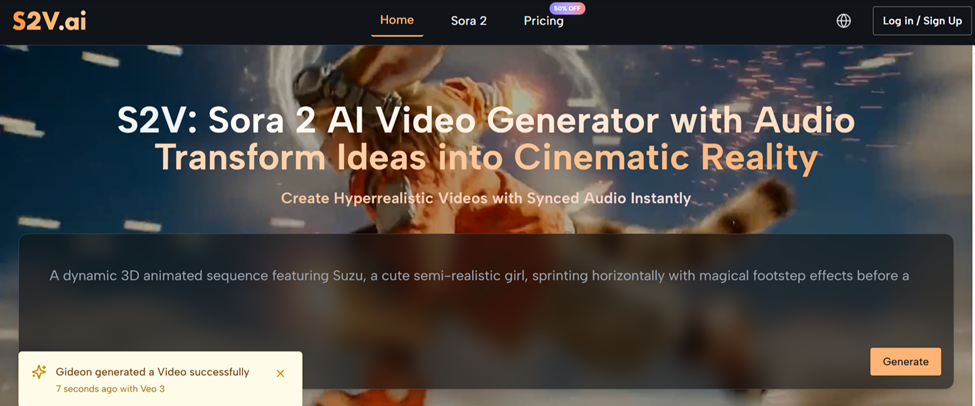
Here’s a practical, beginner-friendly guide to turning ideas into finished videos with S2V, built around the Sora 2 AI. The aim is simple: give you clear workflows, highlight common early mistakes, and show how native audio integration speeds up production for creators, small businesses, and freelancers. Let’s walk through a repeatable process, real-world templates, and efficiency tips you can use right away.
Big Picture Overview
S2V is a professional AI video generator with native audio online—meaning it creates video and audio together, including sound effects and natural dialogue. You’re not just getting visuals; you’re getting a synchronized foundation that already “sounds right.” For non-editors, that cuts tool-hopping and shortens revision cycles. Below is a three-step workflow for getting traction with the Sora 2 Video Generator, plus common pitfalls and practical fixes.
Getting Started Workflow: From Concept to Finished Video
This section focuses on how to use the Sora 2 Video Generator in real production, step by step.
Step 1: Turn your idea into an actionable prompt
Resist the urge to “just generate.” A simple structure makes Sora 2 AI much better at interpreting your intent.
- Define your goal and audience: education, product demo, short promo, social story.
- Break into 3–5 shots: one sentence per shot to capture key beats.
- Tone and style: note “light, conversational dialogue,” “warm narration,” or “clean, minimal motion.”
- Audio expectations: specify sound effects and voice roles, e.g., “subtle street ambience,” “female narrator, steady tempo.”
Example prompt scaffold (customize as needed):
- Theme: New coffee launch for social followers
- Shot structure:
- Morning café exterior, soft light, light city ambience
- Latte art close-up, steam hiss + light music
- Customer tasting, female voiceover: key flavor notes
- Menu card montage, soft percussive accents
- Logo + tagline outro, music tapers down
- Style: warm, authentic, natural dialogue
With the Sora 2 Video Generator, a structured prompt like this is usually more reliable than a vague one-liner.
Step 2: Generate a short cut with native audio
One of S2V’s strengths is native video+audio. That’s great news for small teams—less back-and-forth aligning narration, music, and SFX.
- Start short (10–20 seconds) to validate pacing and tone.
- Narration specifics: define number of voices and mood (friendly, concise, playful). Instead of “add voiceover,” say “female narrator, medium pace, warm tone, no drawn-out line endings.”
- Layering: assign SFX and music intensity per shot (e.g., “Shot 1 low ambience, Shot 2 steam forward, Shot 3 music slightly stronger, outro taper”).
Quick tips:
- Keep the first pass short to speed up iteration.
- Check “emotional continuity”: do audio shifts match cuts and scene energy? If music doesn’t overpower narration and SFX feel balanced, you’re on track.
Step 3: Tighten with focused iterations
Once the draft lands, move into a calm, controlled revision loop.
- One change per round: fix narration pace first, then music levels, then SFX details.
- Write precise edits: “Slow Sentence 2 by ~10%,” “Reduce ambience in Shot 3,” “Add soft click on logo reveal.”
- Name versions clearly: “coffee-v1-slower-vo,” “coffee-v2-add-ambience.” Rollbacks and comparisons become painless.
Search Alignment: Using Keywords without sounding robotic
Blend your how-to content with natural keyword placement so readers and search engines find what they need.
Content planning
- Anchor each piece to 1–2 outcomes: save time, cut cost.
- Keep it scenario-driven: one clear context per piece (product teaser, short course, event promo).
Keyword use
- Use “Sora 2 Video Generator” in title, intro, and 1–2 sections organically.
- Weave in “Sora 2,” “Sora 2 AI,” “Sora 2 Video,” “Sora AI Video,” and “Sora 2 AI Video Generator” within examples and templates, not in clumps.
- Emphasize the experience of integrated video+audio rather than rattling off feature names.
Three Takeaways from Hands-On Use (light first-person)
These are observations, not promises—just what’s worked consistently in practice.
- Short drafts are an efficiency lever
I use 12–20 second “test cuts” to validate pacing and tone. They surface issues fast—like rushed narration or mismatched music—and make revisions surgical.
- SFX carry emotional weight
When I mark 1–2 key sound effects per shot in Sora 2 AI (steam, footsteps, page flip), the story feels more connected. It’s not about more SFX; it’s about the right moments.
- Concrete shot language beats vague style notes
“Slow push, shallow depth of field, warm light” gets me closer to the look I want with Sora 2 AI Video Generator than “cinematic” ever does.
Why this saves time and money
Running a “video + native audio” workflow with the Sora 2 Video Generator pays off across the board for individuals and small teams:
- Shorter toolchain: less exporting and re-aligning VO/music across apps.
- Faster iteration: short test cuts focus revisions on what matters.
- Lower learning curve: structured prompts are easier than learning full NLEs for many creators.
- High reuse: once you nail a structure, you can swap topics, VO, and SFX to produce more, faster.
7-Step Checklist to Start Today
If this is your first time with the Sora 2 Video Generator, use this order to avoid early friction.
- Write one sentence on your goal and audience.
- Draft a 3–5 shot list (one line per shot).
- Set narrator role and tone; list required SFX.
- Generate a 10–20s test cut.
- Fix one issue only (e.g., VO speed), export v2.
- Confirm platform fit (vertical/horizontal, length, first-3s hook).
- Lock style, then expand to full length while keeping the same structure.
Polish and Scale: Make your videos stickier
Once you’ve nailed the basics, these refinements boost watchability.
Pacing and transitions
- Use small camera moves (gentle push/pull, light zooms) for continuity.
- When key phrases appear, pause motion slightly or cut to a close-up to anchor attention.
Script and narration
- Short lines win: one idea per sentence.
- Repeat a keyword twice across the script: introduce, then reinforce—without stuffing.
Audio finesse
- Fade music under the final logo/tagline so the ending lands cleanly.
- Lower ambience indoors and raise it outdoors to mimic real space.
Close the loop: search intent meets production reality
Pairing the Sora 2 Video Generator with an intent-first content strategy creates a durable “produce → test → refine” loop:
- Early stage: educational posts attract readers curious about Sora 2 Video workflows (e.g., “How to create a product teaser with Sora 2 Video on a budget”).
- Middle stage: template-driven posts drive action (e.g., “3 Sora 2 AI Video Generator workflows beginners can use this week”).
- Later stage: case-style write-ups build trust—focus on decision-making and iteration, not specs.
Final Note: Keep the structure simple, let the model handle complexity
When you work with the Sora 2 AI Video Generator, the real unlock isn’t technical mastery—it’s clarity. Define the theme, list your shots, and set audio layers. The model manages the heavy lifting; you direct taste and message. For creators and small teams, this approach gets you from idea to publishable video sooner, makes success repeatable, and makes problems easier to diagnose. Start with the three-step workflow and short test cuts, then grow from there.